
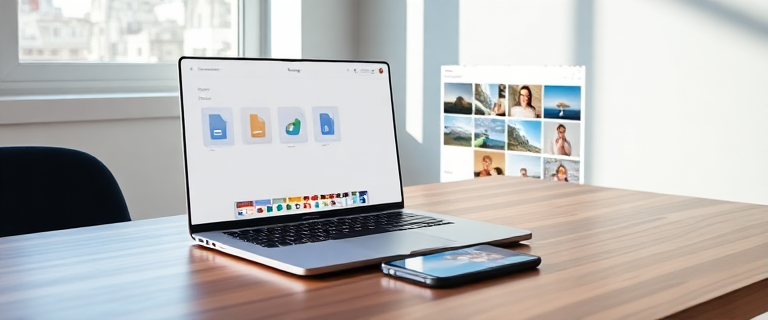
Google Drive vs Google Photos: The Differences, Shared Storage, and Practical Guidance
Google Drive and Google Photos each occupy a distinct role within Google’s ecosystem, yet they share a common storage pool. This means your free 15 GB, and any Google One upgrades, are drawn from the same account-wide quota. Drive acts as a general-purpose vault for all file types, while Photos specializes in your pictures and videos and uses artificial intelligence to organize and surface memories. Most people end up using both: Drive for documents and workflow, Photos for memories and easy sharing.
How the shared storage works between Drive and Photos
All three services—Drive, Photos, and Gmail—draw from the same free 15 GB of storage in a Google account. Uploading large photos or videos to Photos reduces the available space for Drive and vice versa. Because storage is shared, you should plan which service handles which content to avoid running out of space. As a practical rule, treat Photos as the home for media you want searchable, easily shared, and organized by AI, and treat Drive as the catch-all for documents, data, and anything else you need to manage in a collaborative or workflow-driven way.
Google Drive & Google Photos at a glance
Google Drive is described as an all-purpose cloud vault that stores any file type—documents, spreadsheets, PDFs, videos, photos—and provides a familiar folder structure. It can sync with your computer, offers granular sharing permissions, and connects to Google Workspace and a broad ecosystem of apps.
Google Photos, by contrast, is a specialized gallery for photos and videos. It uses AI to auto-organize by faces, places, and objects, surfaces memories, and makes sharing effortless, all without requiring you to maintain manual folders.
Google Drive vs Google Photos: side-by-side comparison
The two services share the same pool of storage but target different needs. The table below highlights the core differences in purpose, file types, organization, sharing, and typical use cases.
| Factor | Google Drive | Google Photos |
|---|---|---|
| Primary purpose | Store & share all file types | Store, organize & share photos & video |
| Supported files | Documents, sheets, PDFs, media, photos, more | Photos and videos only |
| Free storage | 15 GB (shared across Drive, Gmail & Photos) | 15 GB (shared across Drive, Gmail & Photos) |
| Storage upgrade | Google One: 100 GB / 200 GB / 2 TB+ (and up) | Google One (same shared pool) |
| Organization | Manual folders & sub-folders | Automatic AI albums, no folders needed |
| AI & search | Basic name/content search | Face, place & object recognition, smart search |
| PC backup | Backup & Sync from computer to cloud | Auto-backup of device photos/videos |
| Sharing | Granular file/folder permissions | One-tap albums & shareable links |
| Editing | Opens files in Workspace apps | Built-in photo/video editor & effects |
| Best for | Work, documents, collaboration, backup | Personal memories, galleries, quick sharing |
| Integrations | 1,000+ apps via Flozic | Limited; connects via Google Contacts & Drive |
| Price | Free; Google One for more storage | Free; Google One for more storage |
In practice, Drive is the flexible backbone for files you work on, while Photos serves as a smart, media-focused library. The two are not interchangeable, but they complement each other when used as part of a hybrid workflow.
File Types, AI, Sharing & Backup
Although both apps sit under the same storage umbrella, their handling of files, intelligence, and sharing capabilities diverge in meaningful ways. Understanding these differences helps you decide where each kind of content should live.
File Type Support
Google Drive functions as a true all-rounder: it stores documents, spreadsheets, presentations, PDFs, ZIPs, audio, video, and images, and you can open and edit many of these files directly in Google Workspace apps.
Google Photos is purpose-built for images and videos. It does not hold documents or PDFs, but it handles image and video formats with strong optimization and playback support.
AI-Powered Organization
Drive relies on the user to create folders and name files; its search finds by title and, for Docs, by content.
Photos uses AI to auto-group by faces, places, and objects, and to surface memories. This makes it possible to locate images by descriptive searches such as “beach,” a person’s name, or other contextual terms.
Enhanced Sharing
Drive offers powerful, permission-based sharing for files and folders (view, comment, edit), which is ideal for teams and documents.
Photos emphasizes a more intuitive sharing experience for media, with shared albums, one-tap links, and collaborative libraries designed for pictures and video.
PC Backup & Sync
Drive’s Backup & Sync mirrors chosen folders from your computer to the cloud, keeping files safe and accessible from anywhere.
Photos automatically backs up photos and videos from your phone or computer and keeps your gallery in sync across devices.
In short: if you need robust, permission-based collaboration on documents, Drive is the better fit. If your priority is an effortless, searchable gallery of memories with simple sharing, Photos shines.
How to Move Files Between Drive & Photos
Because Drive and Photos share the same Google Account storage, moving content between them is a manual process: you download from one service and upload to the other. Here is a clean, practical path in each direction.
Drive to Photos
In Google Drive, select the photos or folders you want to move, open the menu (three dots) and choose Download. The items arrive as a ZIP file. Unpack the ZIP, then open Google Photos and drag the folder into the Photos window to start an automatic upload. When the upload finishes, delete the originals from Drive to reclaim space and avoid duplication.
Photos to Drive
In Google Photos, select the photos you want, use the three-dot menu to download, and save them to your computer. In Google Drive, create a destination folder if you like, then drag-and-drop the downloaded images from your computer into that folder. After confirming the transfer, consider removing the copies from Photos to manage storage efficiently.
Practical guidance: keep documents and shared work in Drive, and let Photos handle your camera roll. This split helps prevent duplication and keeps both apps tidy.
Automate Google Drive with Flozic
A key strength of Drive is how easily it connects to the rest of your stack. Flozic offers no-code integrations that route files, attachments, and backups across your tools, reducing manual steps. Examples include connecting Drive with Salesforce to auto-save attachments, and linking Drive with 1,000+ apps to automate workflows without writing code.
You can also tap into Google Workspace integrations for real-time collaboration, or connect Google Photos with Google Contacts to streamline sharing and access. If you want a deeper look, you can read a dedicated Flozic review or explore other cloud storage integrations.
TL;DR verdict: Drive and Photos are complementary, not rivals. Use Google Drive to store and share a wide range of files, with folders, PC backup, and broad integrations. Use Google Photos as a dedicated, AI-powered gallery that auto-organizes, makes memories searchable, and enables effortless sharing. Both tap into the same free 15 GB of Google storage, and many teams automate the file-heavy Drive side with Flozic to keep things moving automatically.
Which should you use?
Neither app is inherently better; each is designed for a different job. If your primary need is handling documents, spreadsheets, PDFs, and collaboration, Google Drive remains the versatile backbone for work and automation.
If your priority is storing, organizing, and sharing photos and videos—especially when you want AI-powered search and intuitive sharing—Google Photos is the stronger choice for memories.
The most effective approach for many users is to run Drive for work and Photos for memories, and rely on Flozic to automate file-heavy tasks across both sides.
Frequently Asked Questions
What is the difference between Google Drive and Google Photos?
Google Drive is a general-purpose cloud storage service for all file types, organized in folders. Google Photos is a specialized app for storing, auto-organizing, and sharing only photos and videos, using AI to sort them by faces, places, and objects. Both share the same 15 GB free Google account storage.
Do Google Drive and Google Photos share the same storage?
Yes. Google Drive, Google Photos, and Gmail all draw from the same free 15 GB storage (or your Google One plan if you upgrade). Uploading large photos to Photos reduces available space in Drive, and vice versa.
Should I store my photos in Google Drive or Google Photos?
For most people, Google Photos is the better home for pictures and videos because of automatic AI organization, strong search, and easy sharing. Use Google Drive for photos you need alongside documents, in specific project folders, or when you want granular sharing permissions.
Can I move photos from Google Drive to Google Photos?
Yes, but it’s a manual process. Download the photos from Drive (they arrive as a ZIP), unzip them, then drag-and-drop the folder into Google Photos to upload. Afterward, delete the originals from Drive to avoid duplication and reclaim space.
Does Google Photos organize pictures automatically?
Yes. Google Photos uses AI and machine learning to group photos by faces, places, and objects, and to create memories and highlights. You can search for a person’s name or a keyword like “beach” without creating folders.
Can I automate Google Drive with other apps?
Yes. Flozic’s no-code integrations let you connect Google Drive to 1,000+ apps, enabling auto-save of Salesforce attachments, workflow routing, and more—without writing code.
The verdict: Google Drive or Google Photos?
They aren’t rivals; they’re two halves of Google’s storage story. Drive handles the bulk of work files, documents, and automation, while Photos acts as a smart, AI-driven gallery for memories. The recommended strategy is to use both according to content type and workflow, with Flozic helping automate the file-heavy Drive side.
Key takeaways
Google Drive stores every file type in folders; Google Photos stores only photos and videos, organized by AI. Both apps share the same 15 GB of storage, so you should manage them together. Photos excels in automatic organization, search, and easy sharing, while Drive excels in versatility, PC backup, granular sharing, and extensive integrations. The practical approach is to use both—Drive for work and Photos for memories—and consider automation for the heavy lifting.
Turn Google Drive Into a Workflow Engine
Flozic connects Google Drive to your CRM, spreadsheets, chat apps, and thousands of other tools, enabling automated file handling, attachments, and backups without coding. This can help align document-heavy processes with media workflows, reducing manual steps and speeding up collaboration.
The platform emphasizes no-code integrations, real-time document collaboration, and broad applicability across business tools, making it easier to keep content flowing between Drive and other parts of your tech stack.
Notes on claims
Some statements in this overview reflect content presented by product pages and market listings. For example, Flozic is described as being rated 4.7/5 on G2 from 1,388 reviews, and Google Photos is described as offering privacy assurances such as not selling user photos or using them for advertising. These claims should be verified against current product pages and privacy policies if you need to publish them as contemporary facts.